winget install -e --id GodotEngine.GodotEngineGodot is on its way from the official GitHub release for Windows. The next hour covers finishing winget or the win64 zip, launching the editor, creating or importing a project, running a blank scene, writing a short GDScript, checking GPU needs, skipping random mirrors, and updating through the same door you used to install.
Two asks while the download lands
If the project helped you, star godotengine/godot on GitHub. Stars help other Windows users find the real repository next to lookalike names.
Follow new builds via the releases feed. The feed lists current stable tags and asset names so you can see when the win64 zip moves without refreshing the Releases page by hand.
The first hour with the editor
Work the eight steps in order so you do not redo settings later. Finish the install before you chase export templates. Confirm the editor opens before you blame the download. Run one blank scene before a large import. Updates use the same winget id or GitHub win64 zip you already trust. Longer install context: install on Windows, winget, and for this computer.
- Finish the Windows install.
If you used winget, wait until
the winget install commandexits cleanly. Winget pulls the current the win64 editor zip as a nested portable from microsoft/winget-pkgs. If you took the zip by hand, extract it to a folder you control and leave the nested Godot_v*-stable_win64.exe where it unpacked. Do not run a renamed setup from a search ad while you wait. - Launch the editor once. Start Godot_v*-stable_win64.exe from Start, from winget links, or from the extracted folder. The console companion exe is optional when you want stdout in a terminal. Pass SmartScreen only when the file came from GitHub or winget. Official Windows builds are code-signed by Prehensile Tales B.V. per the download page.
- Open the Project Manager. Create a new project in a folder outside the editor directory, or import an existing project folder. Keep editor binaries and project files separate so updates stay simple. Name the project clearly and pick 2D or 3D as a starting renderer hint when the dialog offers it. Details: Project Manager.
- Confirm hardware basics. Official Windows notes recommend Vulkan 1.0 and list OpenGL 3.3 as minimal. If the viewport stays blank, update GPU drivers before downloading a second copy. Integrated GPUs vary; a failed viewport is usually drivers, not a missing second installer. First run: first run.
- Run a blank scene. Add a root node, save the scene into the project folder, and press play. Confirm the game window opens and closes cleanly. Skip Asset Library installs until this works. If play fails, read the debugger output panel before you reinstall.
- Attach a short GDScript. Open the Script workspace, attach a script with a ready print, save, and run again. Keep the script beside the scene in the FileSystem dock. Guide: first GDScript. C# users should take the .NET Windows build later, not mid first hour.
- Leave export templates for later. Export templates are a second download on the same stable line. Install them when you are ready to ship a Windows build, not during the first hour. Mismatched templates cause confusing errors. Export: export Windows. Releases list: releases.
- Plan the update door. If winget installed the editor, upgrade with winget. If you use a zip folder, replace that folder from GitHub Releases. Do not mix three mirrors. Uninstall for winget uses the same package id; zip users delete the extracted folder. Projects stay on disk until you delete them. Update notes: update and uninstall. Safety: is it safe.
What success looks like
You are done with the first hour when the Project Manager lists your project, the editor opens a scene, play works, and you know whether winget or the win64 zip is your update door. Deepen with guides when you compare engines or export a build.
If you arrived from Unity or Unreal, read the migration notes after the blank scene runs. Licensing and language defaults differ; invented price tables do not help. Migration: move off Unity or Unreal, vs Unity, vs Unreal.
Common first-hour mistakes
Stacking winget and a second zip into two folders wastes time when you later wonder which binary opened. Prefer one editor location. Saving the project inside the editor folder makes upgrades messy because you may overwrite or delete scenes when you replace the zip. Keep projects elsewhere.
Fetching export templates from a random blog is the same class of mistake as fetching the editor from Softonic-style wrappers. Templates belong on the official stable line beside the editor assets. Download-safe notes: download safe. GitHub layout: GitHub.
Borrowing a locked-down lab PC can block winget and unknown executables. Stop rather than forcing a helper installer. Use a machine you control when you need a clean editor path.
After the hour
Next useful reads: portable zip notes, Windows export, and the guides index. Official docs at docs.godotengine.org cover class reference and getting started in more depth than this install page.
Internal links: home, releases, GitHub, download safe, portable or zip, how to install winget.
Keep one install door
Pick winget or the win64 zip and stick with it for upgrades. Stacking a Desktop copy, a Downloads copy, and a winget copy is how people open the wrong binary a month later. Projects belong in their own folders so replacing the editor never deletes scenes.
When App Installer is missing, install it from Microsoft, reopen the terminal, and retry. When you want a portable folder, extract the current the win64 editor zip from GitHub Releases and run the nested editor executable. Console companion binaries are optional when you need stdout.
Official sources only
Prefer github.com/godotengine/godot/releases, microsoft/winget-pkgs id GodotEngine.GodotEngine, and godotengine.org/download/windows. Skip Softonic-style wrappers, renamed setup blogs, and pages that invent a newer stable number than GitHub shows.
Export templates live on the same stable line as the editor. Install them when you are ready to ship a Windows build for players, after a blank scene already runs. Mismatched template lines cause confusing export errors.
Hardware and SmartScreen
Official Windows notes recommend Vulkan 1.0 and list OpenGL 3.3 as minimal. Integrated GPUs vary by driver. A blank viewport after a clean install is usually drivers, not a missing second installer. SmartScreen may prompt on first launch; prefer files that arrived through GitHub or winget so bytes match upstream. Upstream notes that Windows executables are code-signed by Prehensile Tales B.V.
After the editor opens
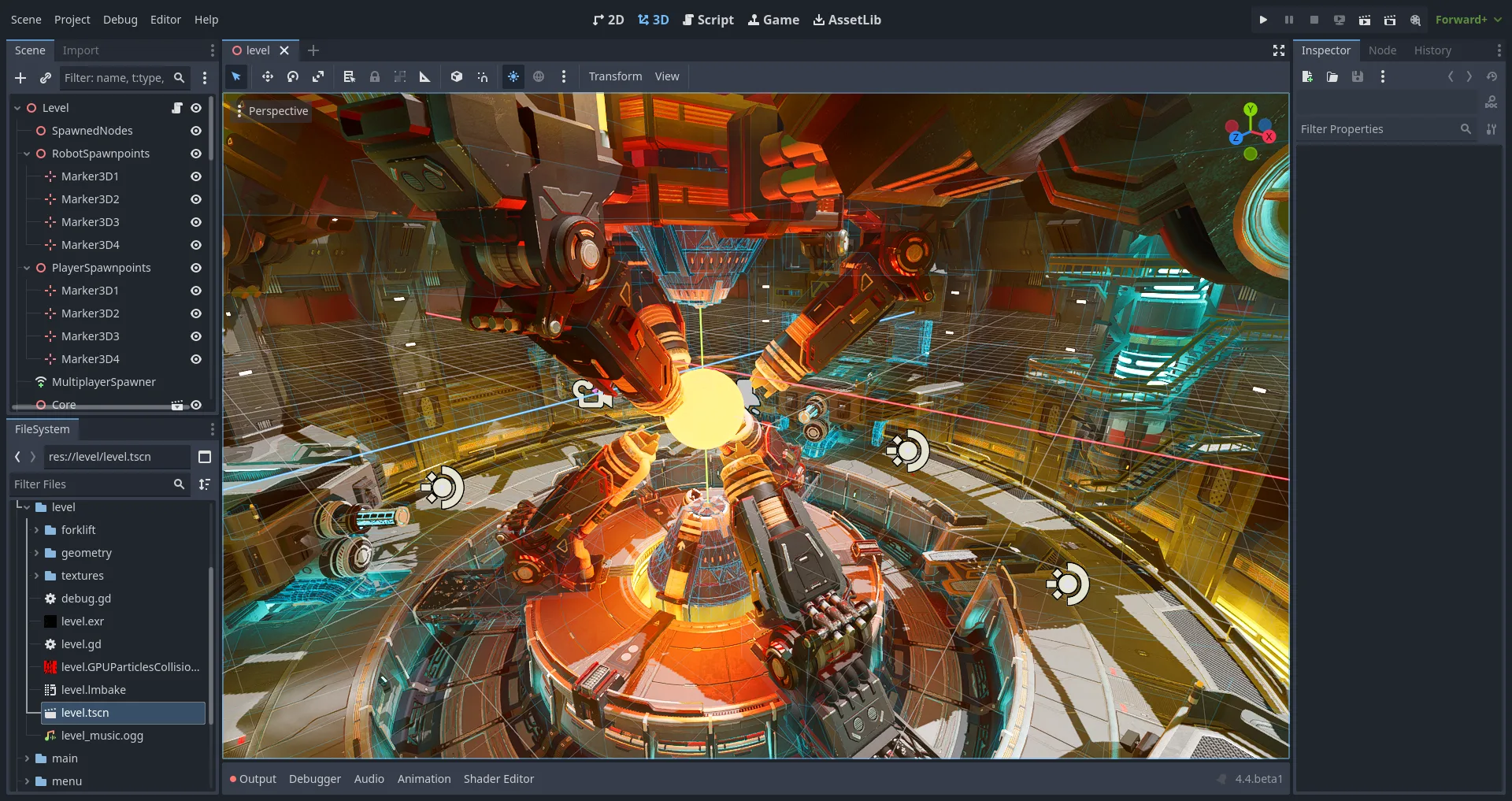
Create or import a project outside the editor directory. Add a root node, save a scene, press play, then attach a short GDScript that prints on ready. Leave large art imports and Asset Library browsing until that path is calm. Update later through the same door you already trust.
Related: Windows install, winget, first run, Project Manager, export Windows, safety, guides index, and first hour.
Frequently asked questions
The download did not start. What now?
Use the download control again, or take the current win64 editor zip from the stable tag on GitHub Releases. Winget users can run the winget install command with the PackageIdentifier instead. Prefer the official Releases page over a second random mirror while you wait.
Zip or winget after the download?
If the download is the win64 zip, extract it and run the nested editor exe. If you preferred winget, wait for the package to finish, then launch from Start. Keep projects outside the editor folder either way.
How do I know the file is genuine?
Match github.com/godotengine/godot/releases and the win64 editor zip filename pattern, or install via the winget PackageIdentifier from microsoft/winget-pkgs. Prefer upstream signing notes over a second random mirror copy of the same-looking exe.
When do I install export templates?
Install export templates after a blank scene already plays cleanly in the editor. Templates ship on the same stable GitHub release line as the Windows editor binary. Download the matching template pack before you export a Windows player build for other machines. Mismatched template lines cause confusing export errors, so keep the editor and templates on the same stable tag.